SSH Sessions
This guide will take you through everything related to viewing SSH Sessions in Keystash. The SSH Sessions list is your window onto every SSH session to your Host Servers — who connected, from where, how they authenticated, and how long they stayed. For example, you can see that maxsmith connected to web-01 from 192.168.1.58 at 09:14, authenticated with a public key and a TOTP code, and disconnected eleven minutes later.
Info
The SSH Sessions list shows the feed captured by SSH Connection Logging — the menu calls it SSH Sessions, but the underlying feature is SSH Connection Logging. Sessions are recorded by the Keystash Agent (v1.6 or newer) and logging is enabled per Server Group. This page covers how to read the sessions; for how they are captured and how to enable logging, see SSH Connection Logging and its How It Works section.
Viewing SSH Sessions
-
Click "Logs" on the menu and then "SSH Sessions".
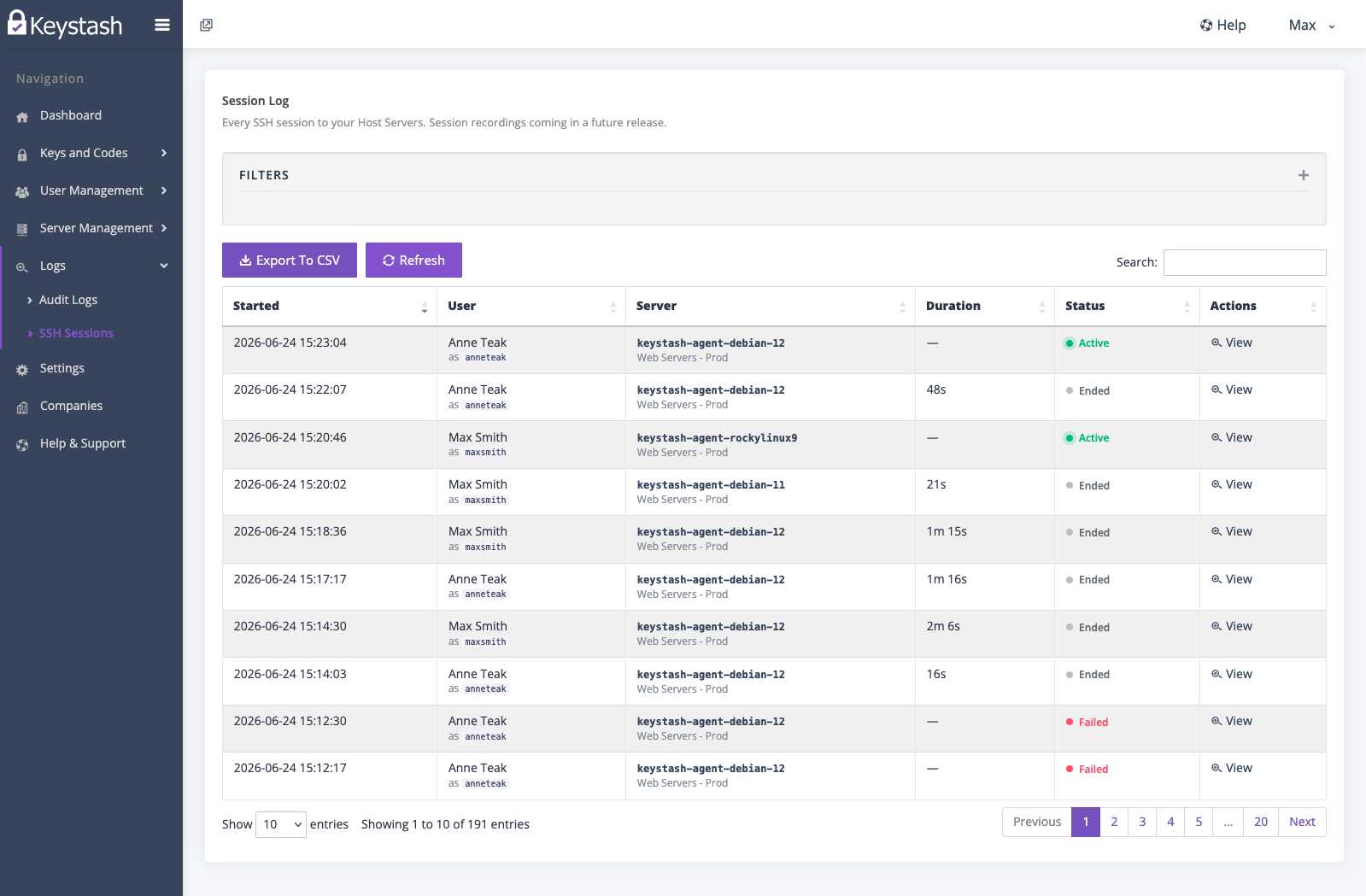
The Session Log card lists every SSH session to your Host Servers, newest first. The list shows these columns:
- Started - When the session began.
- User - The Keystash user who connected, with the Linux username they connected as shown on an
as <username>subline. This shows Unknown when the Keystash user could not be resolved. - Server - The hostname, with its Server Group shown on a subline.
- Duration - How long the session lasted. This shows
—while a session is still Active. - Status - A status pill showing one of Incomplete, Failed, Active or Ended (see Session Statuses).
- Actions - A "View" link that opens the session detail. You can also click anywhere on the row.
Note
Sessions remain visible even if the user or server they relate to is later deleted, so your history stays complete. A deleted user simply shows as Unknown where the name can no longer be resolved.
Filtering
You can narrow the list down to find the sessions you are interested in:
- Set a Start Date and End Date to bound the time range.
- Use the Users filter to limit the list to one or more specific users.
- Use the Servers filter to focus on particular Host Servers.
- Use the Server Groups filter to focus on a Server Group.
- Use the Status filter to show only sessions in a given state — Incomplete, Failed, Active or Ended.
- Click "Apply" to apply your filters, or "Clear" to reset them.
Session Detail
-
Click "View" on a session to open its detail page.
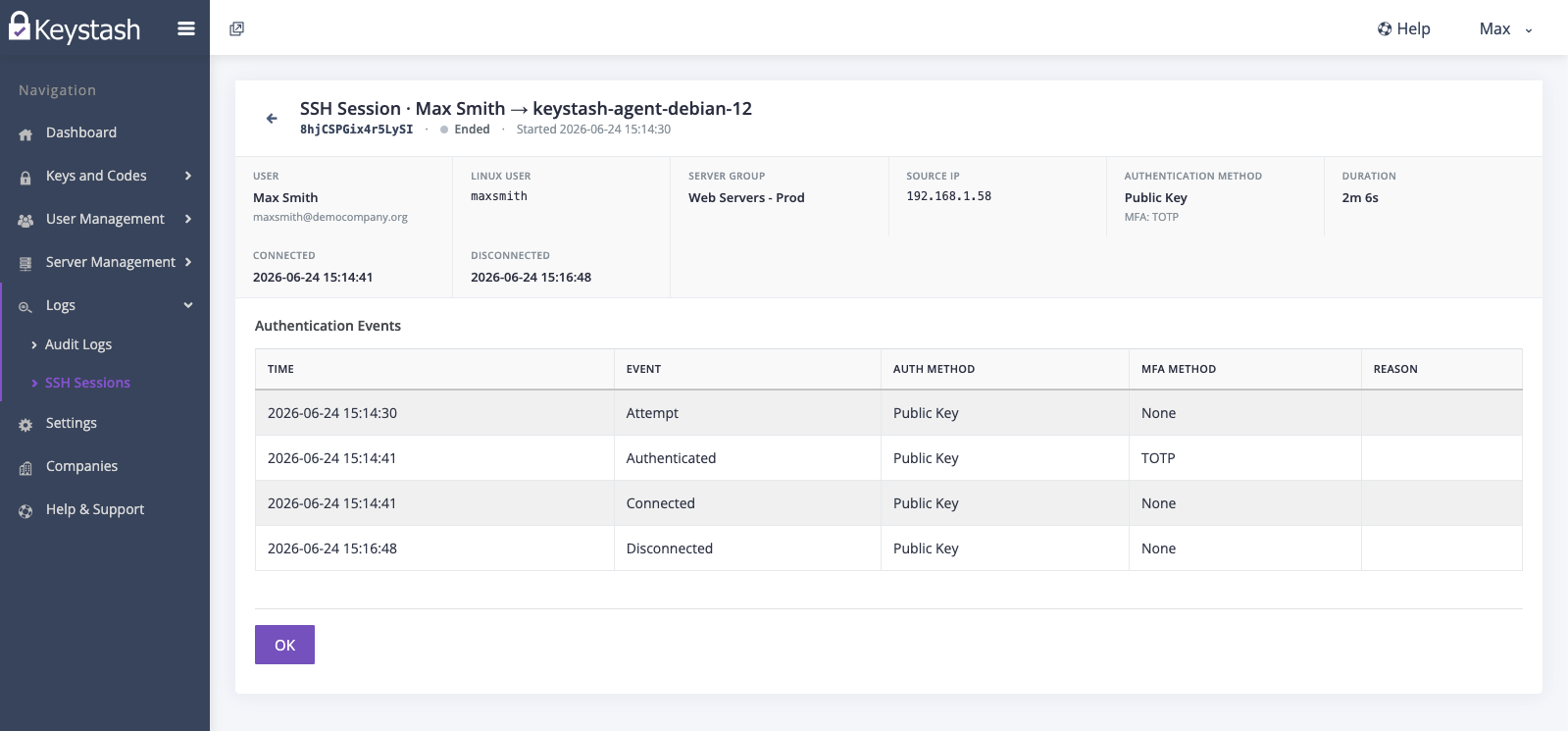
The header shows the session id, its status pill and the start time. Below that, the detail view shows the full picture of a single session:
- User, with the user's email on a subline.
- Linux User - The Linux account the user connected as.
- Server Group.
- Source IP - The address the connection came from.
- Authentication Method, with the MFA Method shown on a subline.
- Duration.
- Connected and Disconnected times.
- Deny Reason - Shown only when the session was refused, with a short description of why.
Below the summary, an Authentication Events table lists each individual event in the order it occurred (oldest first), letting you trace the session from first attempt through to disconnect. It has these columns:
- Time - When the event was recorded.
- Event - The kind of event (see Understanding the Values).
- Auth Method - How the user authenticated.
- MFA Method - The second factor used.
- Reason - A failure reason, present on Denied events.
If no events were captured, the table shows "No authentication events were recorded for this session."
Understanding the Values
The detail view and the Authentication Events table use a handful of consistent labels. The tables below explain what each one means.
Event
| Event | Meaning |
|---|---|
| Attempt | A connection attempt has begun. |
| Authenticated | Authentication succeeded. |
| Connected | The SSH session opened. |
| Disconnected | The SSH session closed. |
| Denied | The connection was refused. |
Authentication Method
| Method | Meaning |
|---|---|
| Public Key | Authenticated with an SSH public key. |
| Password | Authenticated with a password. |
| Keyboard Interactive | Authenticated via keyboard-interactive prompts. |
| GSSAPI | Authenticated via GSSAPI (e.g. Kerberos). |
| Host Based | Authenticated using host-based authentication. |
| Not Reported | The method was not reported. |
MFA Method
| Method | Meaning |
|---|---|
| None | No second factor was used. |
| TOTP | A Two Factor Authentication 6 digit code. |
| TOTP Scratch Code | A backup/scratch code. |
| External Request | A second factor satisfied by an external request. |
| Challenge Request | A second factor satisfied by a challenge request. |
Common Deny Reasons
| Reason | Meaning |
|---|---|
| Not authorized | The user is not permitted to access this server. |
| Not enrolled | The user has not enrolled in Two Factor Authentication. |
| Bad code | An incorrect Two Factor Authentication code was supplied. |
| Rate limited | Too many attempts in a short window. |
| Replay | A code that had already been used was supplied again. |
| Attempts exhausted | The allowed number of attempts was used up. |
Other deny reasons are shown using a readable version of the raw reason.
Session Statuses
A session's Status reflects how far through its lifecycle it got:
- Incomplete - Only an attempt or authentication was seen; the session never opened.
- Failed - The connection was denied.
- Active - The session is connected and has not yet disconnected.
- Ended - The session closed normally.
Note
A session that stays Active for 72 hours without a disconnect event is automatically swept to Ended by an hourly housekeeping job, so a dropped connection cannot leave a session showing as Active indefinitely.
Matching a Session to Agent Logs
Every session carries an SSH Session ID that is also written into the Keystash Agent's own logs on the host, so you can trace a session in the app all the way back to the agent log lines on the server. See Matching a Session to Agent Logs on the SSH Connection Logging page for the details.
Exporting to CSV
You can export the session list for offline analysis or record-keeping.
-
Click "Export To CSV" in the toolbar above the table. Your browser downloads a
keystash-ssh-sessions-export.csvfile.Note
Exporting requires the Export action on the SSH Sessions Role permission (see Permissions).
Retention
SSH sessions are kept for the retention window included with your plan, then removed automatically. A cleanup job runs every 12 hours and deletes any sessions — and their authentication events — older than your plan's retention window plus one day of grace.
Note
The retention window matches your plan's Audit Log retention. As a guide, the Free plan keeps sessions for 7 days, Essentials for 90 days, Pro for 184 days, and Business for 365 days. If you need a longer history, see Upgrade Your Account.
Permissions
Note
Access to SSH Sessions is controlled by the SSH Sessions Role permission, which has separate View and Export actions — a user must hold View to see the session list and Export to download the CSV. Any Role that already had Audit Logs view access was automatically granted SSH Sessions view access. You can read more about roles and permissions here.