Audit Logs
This guide will take you through everything related to Audit Logs in Keystash. The Audit Log is a read-only record of who did what in your account — every create, edit, delete and view action, and every login, captured across both the Keystash app and the REST API. For example, you can see that maxsmith created a new Server Group from 192.168.1.58 at 09:14, or that anneteak logged in and exported an SSH Key earlier that morning.
Info
The Audit Log is read-only and scoped to your company — it records the activity of your own users in the Keystash app and through the API. Nobody can edit or remove individual entries; entries age out automatically according to your plan's retention window (see Retention).
What Is Recorded
Keystash audits virtually every action a user can take. Each entry is stamped with an Action Type describing the kind of operation:
- Create - A new object was created.
- Read - An object or page was viewed.
- Update - An existing object was changed.
- Delete - An object was removed.
- Error - The action failed. When an action errors, it is recorded as an Error rather than under its normal action type.
- Warning - A noteworthy condition that is not an outright failure.
Actions are recorded across virtually every area of Keystash, including:
- Users, User Groups and Linux Groups.
- Roles & Permissions.
- SSH Keys and Two Factor Authentication secrets.
- Servers, Server Groups and Deployment Secrets.
- SSH Sessions and the Audit Log itself.
- Company and Billing settings, Single Sign-On (SSO) and SCIM.
- Authentication events — user login and logout, API login and logout, use of a backup Two Factor Authentication code, and SSO auto-provisioning.
This is not an exhaustive list — almost every other create, edit, delete or view action follows the same pattern and is recorded the same way.
Note
Sensitive values are never stored in an audit entry. Fields such as passwords and secrets are stripped out before the description is saved, so reading the Audit Log can never expose a credential.
Viewing Audit Logs
-
Click "Logs" on the menu and then "Audit Logs".
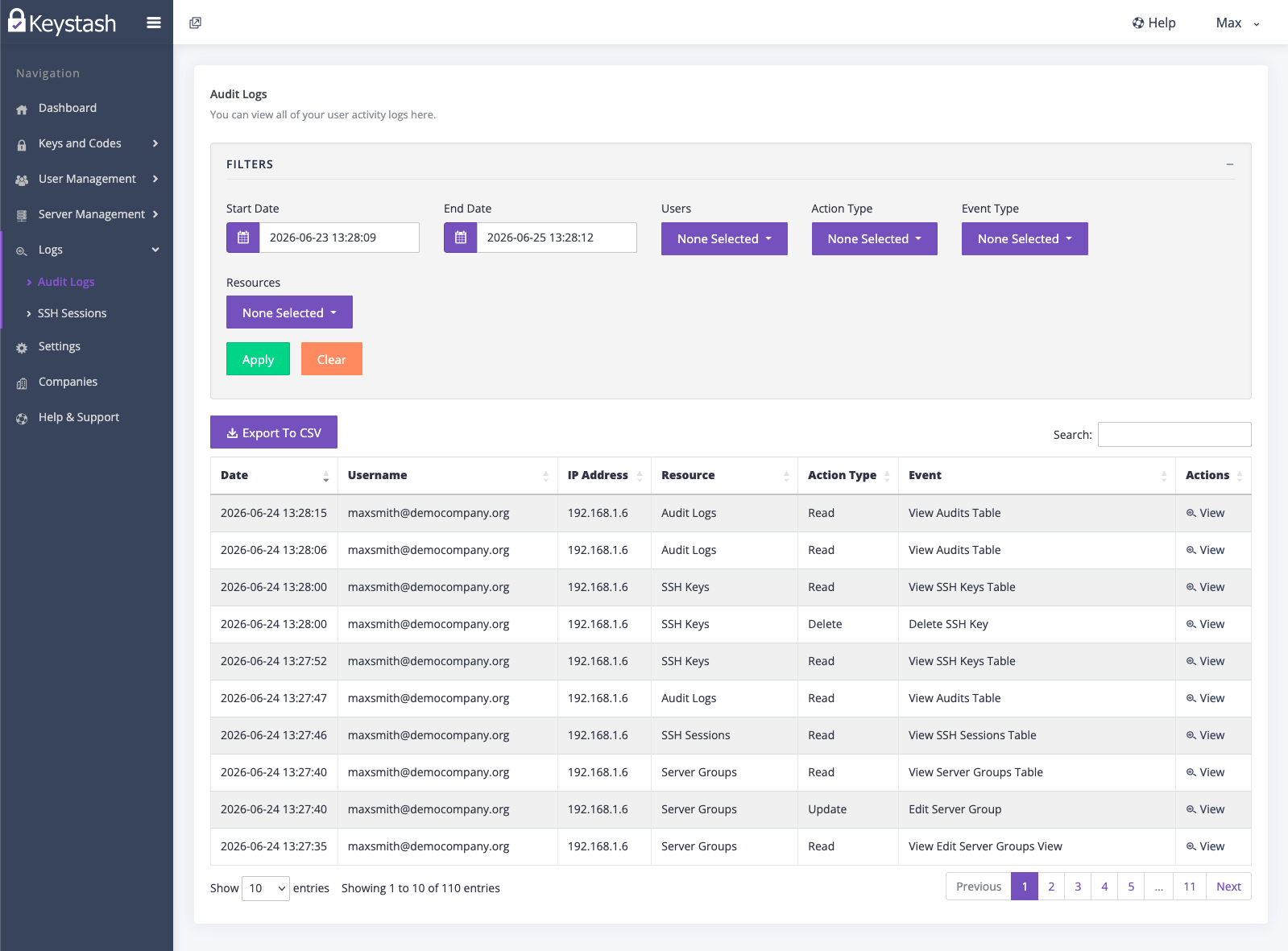
The Audit Logs card lists all of your user activity, newest first. The list shows these columns:
- Date - When the action took place.
- Username - The user who performed the action.
- IP Address - The address the action came from. This shows
unknownwhen an address could not be determined. - Resource - The area of Keystash that was affected.
- Action Type - One of Create, Read, Update, Delete, Error or Warning.
- Event - The specific event that was recorded.
- Actions - A "View" link that opens the full entry.
Filtering
You can narrow the list down to find exactly the activity you are looking for:
- Set a Start Date and End Date to bound the time range.
- Use the Users filter to limit the list to one or more specific users.
- Use the Action Type filter to show only certain action types (for example, only Delete actions).
- Use the Event Type filter to show only specific events.
- Use the Resources filter to focus on one or more areas of Keystash.
- Click "Apply" to apply your filters, or "Clear" to reset them.
Audit Log Detail
-
Click "View" on any entry to open the View Audit Log detail page.
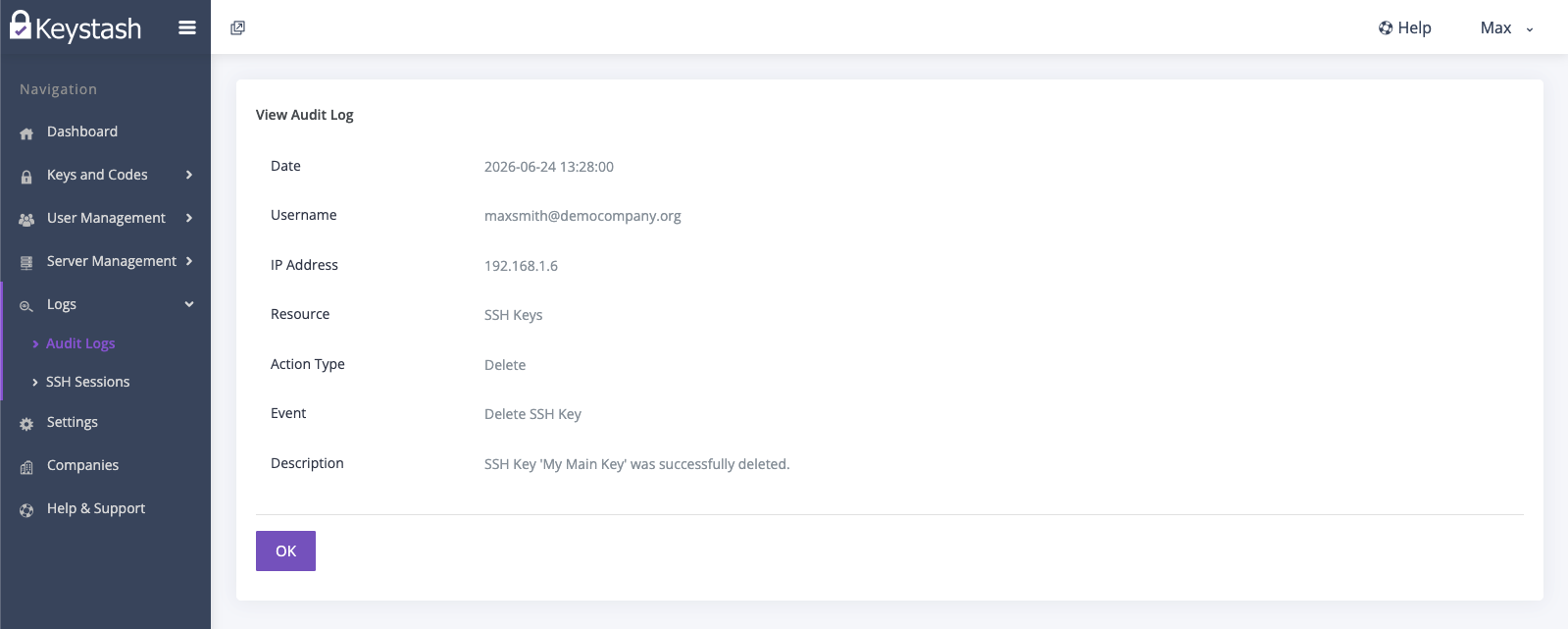
The detail view shows the full, read-only record of a single action:
- Date.
- Username.
- IP Address.
- Resource.
- Action Type.
- Event.
- Description - A human-readable summary of exactly what happened.
-
Click "OK" to close the detail view.
Exporting to CSV
You can export the Audit Log for offline analysis or record-keeping.
-
Click "Export to CSV" in the toolbar above the table. Your browser downloads a
keystash-audit-log-export.csvfile.Note
Timestamps in the export are converted to your local time, rather than the UTC time stored in Keystash. The export itself is recorded in the Audit Log as an Export Audit Log event.
Retention
Audit Log entries are kept for the retention window included with your plan, then removed automatically.
Note
The retention window matches your plan. As a guide, the Free plan keeps audit entries for 7 days, Essentials for 90 days, Pro for 184 days, and Business for 365 days. If you need a longer history, see Upgrade Your Account.
Permissions
Note
Access to the Audit Log is controlled by the Audit Logs Role permission, which has separate View and Export actions — a user must hold View to see the log and Export to download the CSV. You can read more about roles and permissions here.