SSH Connection Logging
This guide will take you through everything related to SSH Connection Logging in Keystash. SSH Connection Logging records the full lifecycle of every SSH session to your Host Servers — the login attempt, the successful (or failed) authentication, the moment the session opens, and the moment it closes — and surfaces all of it in the Keystash app. For example, you can see that maxsmith connected to web-01 from 192.168.1.58 at 09:14, authenticated with a public key and a TOTP code, and disconnected eleven minutes later.
Info
SSH Connection Logging is delivered by the Keystash Agent together with its bundled PAM module (pam_keystash.so). It is available on agent v1.6 and newer and is enabled per Server Group from the Keystash app. No separate install step is required.
Overview
When SSH Connection Logging is enabled for a Server Group, every server in that group records SSH session events as they happen and forwards them to Keystash. Each completed session appears under Logs > SSH Sessions, where you can review who connected, from where, how they authenticated, and how long they stayed.
The feature captures login-lifecycle metadata only. It does not record command contents, keystrokes, or session output — there is no session recording currently.
Requirements
- Keystash Agent v1.6 or newer installed on the server. The PAM module that captures session events ships in the same
keystashpackage as the agent, so there is nothing extra to install. See Installing and Upgrading the agent. - The server must belong to a Server Group that has SSH Connection Logging enabled (see Enabling SSH Connection Logging below).
How It Works
The bundled PAM module, pam_keystash.so, is hooked into /etc/pam.d/sshd at both the auth phase and the session phase. As a user connects, authenticates, and later disconnects, the module emits one event per phase over a local Unix socket to the Keystash Agent running on the same server.
- The module records the event and hands it to the agent. The session-logging line in the PAM stack is written as
session optional pam_keystash.so. - The agent spools each event to disk so that nothing is lost across a crash or reboot, then drains the spool in batches on its regular sync tick (every 60 seconds) and posts the events to Keystash.
- If Keystash is briefly unreachable, the events stay spooled and are retried on the next tick.
Note
The session-logging PAM line is optional. This is deliberate: it can never block a login, even if the Keystash Agent is stopped or the socket is unavailable. SSH Connection Logging only ever observes sessions — it never gates them.
The agent reconciles the PAM stack automatically. When you enable or disable SSH Connection Logging for a Server Group, the agent adds or removes the session optional pam_keystash.so line on the next sync (roughly 60 seconds later). You do not need to edit any PAM files by hand.
What Is Captured
The PAM module records up to five event types over the life of a session:
| Event | Meaning |
|---|---|
attempt |
A connection attempt has begun. |
authenticate |
Authentication succeeded. |
connect |
The SSH session opened. |
disconnect |
The SSH session closed. |
deny |
The connection was refused (for example, a failed authentication). |
Each event carries the following fields:
| Field | Description |
|---|---|
| User | The Keystash user, and the Linux username they connected as. |
| Source IP | The IP address the connection came from. |
| Event type | One of the five event types above. |
| Authentication Method | How the user authenticated: pubkey, password, keyboard-interactive, hostbased, gssapi, or unknown. |
| MFA Method | The second factor used: none, totp_mfa (a Two Factor Authentication code), totp_mfa_scratch (a backup/scratch code). |
| Reason | An optional failure reason, present on deny events. |
| Timestamp | An ISO-8601 millisecond timestamp of when the event occurred. |
| Session ID | The identifier that ties the events together into a single session (see Matching a Session to Agent Logs). |
Enabling SSH Connection Logging
SSH Connection Logging is controlled per Server Group. There is no setting for it in keystash.conf — it is turned on or off entirely from the Keystash app, and defaults to on for new Server Groups.
- Click "Server Management" on the menu and then "Server Groups".
- Click "Add Server Group" to create a new group, or "Edit" on an existing group.
-
Toggle "Enable SSH Connection Logging" on or off.
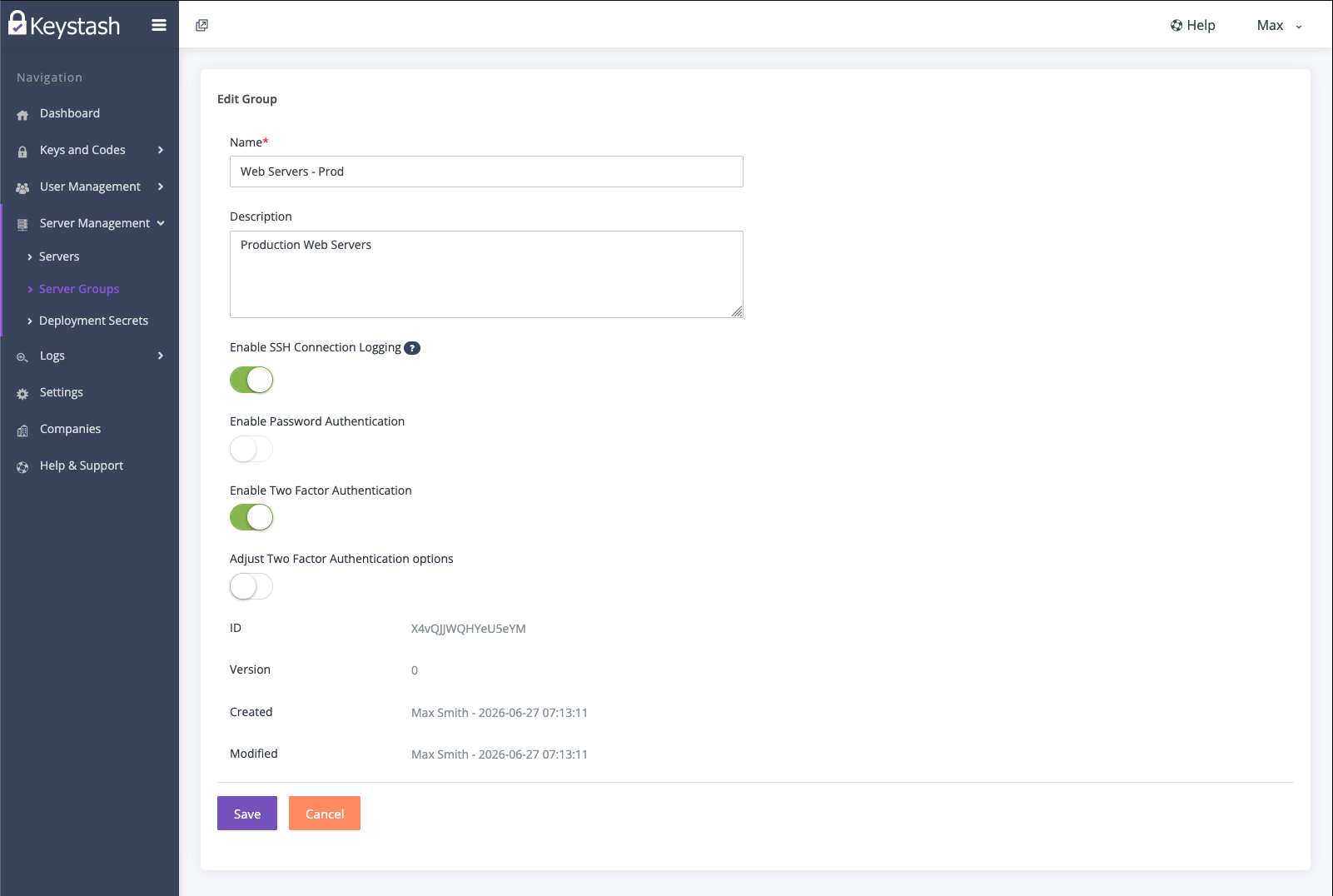
Note
The tooltip on this toggle reads "Logs SSH session authentication events for servers in this group. Requires a Keystash Agent version with SSH session logging support." Servers in the group must be running agent v1.6 or newer for sessions to be recorded.
-
Click "Save".
The agent on each server in the group picks up the change on its next sync (around 60 seconds) and reconciles the session optional pam_keystash.so line in /etc/pam.d/sshd accordingly. No restart or manual PAM edit is needed.
Tip
Because logging is set at the Server Group level, you can keep it on for sensitive production groups and leave it off for low-value or noisy groups. There is no per-user or per-server toggle — the only account-level controls are the role permission that gates viewing sessions and the per-plan retention window described below.
Viewing SSH Sessions in Keystash
Once enabled, completed and in-progress sessions appear in the Keystash app under Logs > SSH Sessions. See SSH Sessions for how to read, filter and export them, what each status and authentication value means, and the Role permission that gates access.
Matching a Session to Agent Logs
Every SSH session has a Session ID — the same identifier shown in the Keystash UI is also written into the agent's own logs on the host. Each recorded event produces an agent log line (at debug level) that carries session=<id>, for example:
connection_log recorded event=authenticate user=maxsmith ip=192.168.1.58 sshid=… auth=pubkey mfa=totp_mfa session=Ab3xK9pQ7rT2mWcD
The session= value matches the SSH Session ID shown in the app, so you can take a session from the UI and grep for it directly in the host's agent log (journalctl -u keystash, with debug logging enabled). A value of session=- means forwarding was disabled, or the event was dropped before a session could be resolved.
Privacy and Retention
SSH Connection Logging stores login-lifecycle metadata only — who connected, from where, how they authenticated, and the session's start and end times. It does not capture command contents, keystrokes, or any session output.
On each server, the agent spools pending events to disk under /var/lib/keystash/session-events/ before uploading them. The on-disk spool is bounded so it can never grow unchecked: events older than 72 hours are dropped, no more than 50 events are drained per 60-second tick, and the spool is capped at 50,000 files.
On the server side, sessions are retained according to your plan — see Retention for the per-plan windows.
Troubleshooting
If sessions are not appearing in Keystash, work through the SSH Connection Logging not appearing checklist on the Troubleshooting page. It covers confirming the Server Group toggle, the agent version and sync state, the PAM line, the IPC socket, and the on-disk spool.